A few days ago, as I was telling my wife about a visit to our local Apple store, she mentionned an application she had seen there and was hoping to get my opinion. "It's a logo creation application" she said, to which I answered that most times, designers simply use applications like Illustrator or Photoshop to create these, instead of using some customized application. "But it creates vector graphics" she added and that got me curious. Vector graphics can be tremendously handy for any kind of printed work, as they can be resized without loss of resolution.
I picked up the application, installed it and got busy creating some logos. First of all, Logo Design Studio Pro 2 comes with several thousand shapes, images, templates and the like to help you get started. With the ability to layer these elements, as well as being able to create new ones, this application really does help the creative process, especially for those users that may not have as much creativity for these types of tasks. But that does not mean that an especially creative person can't also use it to save time!
A great application at a great price!
Showing posts with label Software. Show all posts
Showing posts with label Software. Show all posts
Friday, September 16, 2011

Friday, February 25, 2011
Software Review: Autodesk Sketchbook Express
As part of the software package provided with the Wacom Intuos 4 tablet I purchased recently, Autodesk Sketchbook Express 2011 is a fantastic product.

A simple interface and the common tools one would expect in a drawing program really help to make this application simple to use for almost any budding digital artist. What I found particularly great was the ability to use this application without ever using any other interface device than the pen and tablet. I've discovered that I never have to reach for the keyboard when I am drawing. Of course, I expected that the makers of AutoCAD would also know a thing or two about drawing in general.

A trial version of the application is available for download and if you have a pen and tablet, you might want to try it out and discover this great tool for yourself.
A simple interface and the common tools one would expect in a drawing program really help to make this application simple to use for almost any budding digital artist. What I found particularly great was the ability to use this application without ever using any other interface device than the pen and tablet. I've discovered that I never have to reach for the keyboard when I am drawing. Of course, I expected that the makers of AutoCAD would also know a thing or two about drawing in general.

A trial version of the application is available for download and if you have a pen and tablet, you might want to try it out and discover this great tool for yourself.
Tuesday, February 22, 2011
Wacom Intuos 4 tablet
After doing some research, I decided to purchase a Wacom Intuos 4 medium drawing tablet. A while back, I had purchased a small Wacom Bamboo drawing tablet for my wife, but one of the first things I noticed was that it was pretty small and not as responsive as I had expected. It was fine for occasional use, but I had decided that I wanted a larger drawing surface and better responsiveness.

Nik® Color Efex Pro™ WE6
After shopping around, I headed to Henry's in Ottawa as they were offering the best prices I had seen on Wacom products in the region and picked up the tablet. One of the first things to remark is that Wacom has taken care to produce an attractive looking and effective packaging solution.

One of the deciding factors on this specific model was the great software discounts for Adobe Photoshop CS5, almost 50% off the list price! Wacom has also included a very decent software package, which includes the following:
Nik® Color Efex Pro™ WE6
Wacom Brushes 3.0
Adobe Photoshop® Elements 8 for PC and Mac
Autodesk SketchBook Express® 2010
Corel Painter™ Sketch Pad
I got home and unpacked everything. I wasn't exaggerating about the great packaging job that Wacom has done on this line of tablets. The box contains:
The tablet
The drawing stylus (or pen if you prefer)
The mouse
A weighted stand for the stylus
10 extra nibs for the stylus
A nib extractor tool
A USB cable (standard to mini)
A documentation package (which includes a driver CD, a quick start manual and a reference manual)
I don't use a mouse with my Macbook Pro and I don't think this is about to change. Although the mouse is quite nicely shaped, with five fully customizable buttons, excellent resolution and battery-free operation, it's limited to the tablet surface to work and that quickly limits its use, in my opinion. I set the mouse aside and got everything else setup. I have to give some kudos to Wacom for the elegant design of the pen stand, which doubles as a storage container for both the extra nibs and the nib extractor tool.

After installing the software (and let this be a general tip to less experienced computer users, always get the software installed and updated before plugging in the hardware; saves a ton of headaches afterwards) I plugged in the tablet. Another interesting design feature is the inclusion of two USB ports on the tablet, to allow the option of a proper cable orientation when used in right-hand or left hand mode. One of the most common complaints of Wacom's tablets was the general right-handedness of their devices. The new Intuos 4 models have resolved this issue by placing all of the tablets secondary controls on one side of the device. This allows the user to simply flip the tablet to allow both righties and lefties! The settings menu allows the user to switch modes and the tablets customizable OLED displays flip to the correct orientation.

The displays themselves are truly useful, removing the need to memorize yet another set of custom controller parameters. The touch ring, another change to the Intuos line, has four modes, indicated by one of four small lights. This allows the ring to provide access to four linear-type functions, like zoom, brush size, canvas rotation and more.
The tablet is incredibly responsive and a pleasure to use. The increased level of pressure sensitivity, together with very low starting weight (1 gram vs. 10 grams) really set this line apart from previous incarnations.

If you've never tried a tablet, I highly recommend any of the models from the Intuos 4 line. If you already have a tablet, consider any of the models to be a great upgrade to the tablet you might currently be using. Really, a fantastic product!
The tablet
The drawing stylus (or pen if you prefer)
The mouse
A weighted stand for the stylus
10 extra nibs for the stylus
A nib extractor tool
A USB cable (standard to mini)
A documentation package (which includes a driver CD, a quick start manual and a reference manual)
I don't use a mouse with my Macbook Pro and I don't think this is about to change. Although the mouse is quite nicely shaped, with five fully customizable buttons, excellent resolution and battery-free operation, it's limited to the tablet surface to work and that quickly limits its use, in my opinion. I set the mouse aside and got everything else setup. I have to give some kudos to Wacom for the elegant design of the pen stand, which doubles as a storage container for both the extra nibs and the nib extractor tool.

After installing the software (and let this be a general tip to less experienced computer users, always get the software installed and updated before plugging in the hardware; saves a ton of headaches afterwards) I plugged in the tablet. Another interesting design feature is the inclusion of two USB ports on the tablet, to allow the option of a proper cable orientation when used in right-hand or left hand mode. One of the most common complaints of Wacom's tablets was the general right-handedness of their devices. The new Intuos 4 models have resolved this issue by placing all of the tablets secondary controls on one side of the device. This allows the user to simply flip the tablet to allow both righties and lefties! The settings menu allows the user to switch modes and the tablets customizable OLED displays flip to the correct orientation.

The displays themselves are truly useful, removing the need to memorize yet another set of custom controller parameters. The touch ring, another change to the Intuos line, has four modes, indicated by one of four small lights. This allows the ring to provide access to four linear-type functions, like zoom, brush size, canvas rotation and more.
The tablet is incredibly responsive and a pleasure to use. The increased level of pressure sensitivity, together with very low starting weight (1 gram vs. 10 grams) really set this line apart from previous incarnations.

If you've never tried a tablet, I highly recommend any of the models from the Intuos 4 line. If you already have a tablet, consider any of the models to be a great upgrade to the tablet you might currently be using. Really, a fantastic product!
Saturday, February 12, 2011
Online Tools review: Prezi
Are you tired of the same boring presentations? Have you been looking for a simple solution to this problem? Well, search no more; Prezi is here! Somewhat difficult to sum up in a few short words, Prezi is a Flash-based presentation tool that allows even a new user with little experience, to create beautiful, animated, zoomable, non-linear presentations!

One of the great things about Prezi is that it is available for free, with some limitations, of course! A paid subscription (there are two levels of pay access, with various options) are available and really extend what is possible. Prezi uses a fantastic user interface that is truly intuitive and simple to use. If you want to create something that will blow you coworkers (and your employers!) away, head on over to their site with your next project and see what you can build with it! I am certain that you will be completely amazed!

Wednesday, February 2, 2011
My top ten iPod Touch apps
After much debate, I decided, a couple months ago to purchase an iPod Touch. Having used my wife's iPad for a little while, I knew that I wanted a better device than the iPod Nano I had been using. Of course, I didn't expect that one of the primary uses of the iPod Touch would be the use of some absolutely fantastic applications and games. And with friends regularly asking for my advice concerning apps, I thought I would compile a list of my ten favourite apps to date.
1. Evernote
If there was one single application that I could install on my iPod Touch or iPhone, this would be the one. With the ability to keep created content synched across your devices and computer(s), Evernote helps you to remember everything, but does so much more. If you haven't experienced it for yourself, give your memory a helping hand and try the free version today.
2. List Pro
Obsessive list builders, this is the app for you. Not only can List Pro create pretty much any list you could care for, it also provides several templates and a free online list exchange service that contains some real gems. A real favorite of mine in any case.
3. Facebook
Having used the web version of FB for many years, I had become a little jaded by all of the extra (some might say unrequired but likely profitable) features available beyond the basic elements that made FB famous. Well, the FB app is back to basics for this application, with all of the basic features that made FB great and nothing extra. If you haven't tried this app, do yourself the courtesy of trying it, you will love FB again.
4. Genius Scan
Since I have discovered Evernote, I keep wishing that Genius Scan's great functionality could be somehow integrated. When confronted with an image, a printed document, a posted bus schedule, a posted bill, I whip out this great app, snap a shot, correct the skewing with my finger and save the image as a document accessible when I want it! Fantastic!
5. VLC
Allows you to play pretty much any video file on your device. Do I need to say any more?
6. QuickVoice
Turn your iPod Touch or iPhone into a voice dictation machine. With a better interface than the included Voice Recorder and simpler file management, truly a great tool.
7. MyPDFs
If you have any PDF documents in your library, this is the application for you. With a number of nice features for viewing even the largest PDF files, this is the application that lets you take your library with you.
8. CIBC app
Being early adopters, CIBC was the first Canadian bank to offer an iPod app. Great app, every feature you could expect! A great way to access your banking services.
9. Skype
If you've never used Skype, give it a try right now. One of the easiest ways to communicate with people the world over. Make international calls for pennies a minute with great call quality. Set up easy video chat sessions and more. The app works fantastically well for making calls all over, although you need to purchase credits to make calls to landlines.
10. AppShopper
Want a great way to find new apps? Would you like to know when some paid applications become free? Well then AppShopper is for you then! A simple interface, great controls and updated every day if not several times a day, this is the app for your app needs.
I decided that I would post a similar list for games in the near future. Keep your eyes open for the next installment soon.
1. Evernote
If there was one single application that I could install on my iPod Touch or iPhone, this would be the one. With the ability to keep created content synched across your devices and computer(s), Evernote helps you to remember everything, but does so much more. If you haven't experienced it for yourself, give your memory a helping hand and try the free version today.
2. List Pro
Obsessive list builders, this is the app for you. Not only can List Pro create pretty much any list you could care for, it also provides several templates and a free online list exchange service that contains some real gems. A real favorite of mine in any case.
3. Facebook
Having used the web version of FB for many years, I had become a little jaded by all of the extra (some might say unrequired but likely profitable) features available beyond the basic elements that made FB famous. Well, the FB app is back to basics for this application, with all of the basic features that made FB great and nothing extra. If you haven't tried this app, do yourself the courtesy of trying it, you will love FB again.
4. Genius Scan
Since I have discovered Evernote, I keep wishing that Genius Scan's great functionality could be somehow integrated. When confronted with an image, a printed document, a posted bus schedule, a posted bill, I whip out this great app, snap a shot, correct the skewing with my finger and save the image as a document accessible when I want it! Fantastic!
5. VLC
Allows you to play pretty much any video file on your device. Do I need to say any more?
6. QuickVoice
Turn your iPod Touch or iPhone into a voice dictation machine. With a better interface than the included Voice Recorder and simpler file management, truly a great tool.
7. MyPDFs
If you have any PDF documents in your library, this is the application for you. With a number of nice features for viewing even the largest PDF files, this is the application that lets you take your library with you.
8. CIBC app
Being early adopters, CIBC was the first Canadian bank to offer an iPod app. Great app, every feature you could expect! A great way to access your banking services.
9. Skype
If you've never used Skype, give it a try right now. One of the easiest ways to communicate with people the world over. Make international calls for pennies a minute with great call quality. Set up easy video chat sessions and more. The app works fantastically well for making calls all over, although you need to purchase credits to make calls to landlines.
10. AppShopper
Want a great way to find new apps? Would you like to know when some paid applications become free? Well then AppShopper is for you then! A simple interface, great controls and updated every day if not several times a day, this is the app for your app needs.
I decided that I would post a similar list for games in the near future. Keep your eyes open for the next installment soon.
Friday, July 2, 2010
Online Tools review: Ninite
I've been an Apple user for more than 10 years now, but I still use a Windows-based computer for work and as such, I've found myself installing applications and re-installing applications on a pretty regular basis. And I'm not talking about commercial software packages, I'm referring to the basic, free tools that we all install on our computers.
Well someone turned me on to Ninite, a truly ingenious method of selecting and installing the most common, free applications for the Windows platform (I'm in process of begging for an OS X version!). Of all the online tools I've reviewed, this one strikes me as one of the most useful to date.
Take a minute out of your day to take a look. I know you will not regret it!
Well someone turned me on to Ninite, a truly ingenious method of selecting and installing the most common, free applications for the Windows platform (I'm in process of begging for an OS X version!). Of all the online tools I've reviewed, this one strikes me as one of the most useful to date.
Take a minute out of your day to take a look. I know you will not regret it!
Wednesday, June 30, 2010
Online Tools review: Keyonary
If you've been working with computers for a while now, you might accumulated a dizzying quantity of keyboard shortcuts, for various applications and operating systems. Although most applications provide some method of determining the most common shortcuts (usually through the use of the Help section), many of them remain quite cryptic. In comes a fantastic online database called Keyonary, which is truly a useful shortcut search tool. With a simple interface, quick response and extensive database, it's the place to go to find a shortcut for an application you're using.
Take a look and add to your reference bookmarks, it's worth it.
Take a look and add to your reference bookmarks, it's worth it.
Monday, July 27, 2009
Pick of the week: VersionTracker
Like almost every computer user today, I sometimes struggle to get all the updates to the software titles that I use on my computers, let alone find out about new software. There are many software repositories available online, but sadly, they are mostly for the Windows platform, and that is not too helpful for me, being an Apple user (my wife and I are both Apple users). But there is one that I have found to be helpful, well organized and current and that site is VersionTracker.
VersionTracker provides a list-type interface, as well as separate tabs for Windows, OS X, iPhone and the Palm OS.
If you use any of these software platform and didn't know about Version Tracker, head over right now. You'll be glad you did.
VersionTracker provides a list-type interface, as well as separate tabs for Windows, OS X, iPhone and the Palm OS.
If you use any of these software platform and didn't know about Version Tracker, head over right now. You'll be glad you did.
Thursday, March 26, 2009
Online Tools review: Google Reader
A few weeks ago, as I was browsing and reading through some favourite blogs, I came across an article on improving browsing time on the Web. This article, on Lifehacker, was essentially a bunch of tips on making better use of some of the available resources that can make your time online that much more productive. As I read through the article, one tip caught my eye: use an RSS reader. As I read this entry, one suggestion was using a tool like Google Reader.
Well, being an affirmed Gmail user, I decided to see what Google Reader (or GR) was all about. And let me tell you, I am still hooked! Google Reader is a web-based RSS aggregation application, also known as an RSS reader, and what it lacks currently in aesthetics, it makes up in functionality. GR allows a user to subscribe to RSS feeds and blogs, organize these subscriptions into groups, and display the feeds. As the tool is web-based, as mentioned previously, it becomes available from any computer that is connected to the Internet. Many have indicated to the future of computing being web-based, and although I have some reservations about this concept, GR and other such tools truly belong in this category.
As I learn more about GR, I will post further information as it becomes available. Do yourself a favour and check out Google Reader!
Well, being an affirmed Gmail user, I decided to see what Google Reader (or GR) was all about. And let me tell you, I am still hooked! Google Reader is a web-based RSS aggregation application, also known as an RSS reader, and what it lacks currently in aesthetics, it makes up in functionality. GR allows a user to subscribe to RSS feeds and blogs, organize these subscriptions into groups, and display the feeds. As the tool is web-based, as mentioned previously, it becomes available from any computer that is connected to the Internet. Many have indicated to the future of computing being web-based, and although I have some reservations about this concept, GR and other such tools truly belong in this category.
As I learn more about GR, I will post further information as it becomes available. Do yourself a favour and check out Google Reader!
Wednesday, January 2, 2008
Software review: iBank
I've decided that this year was the year I would get my finances back on track, and being a OSX user, I thought I would forego the usual PC choices and select an application that was designed from the ground up for this platform. This led me to iBank. Now, keep in mind, I'm not sure if this is the solution I would select if I was a multimillionaire, but I think that in my case, the scale of the application mirrors my needs perfectly.
I can tell this was designed by someone from my generation, when one of the built-in expense categories is Dining: Coffee! In my book, that truly deserves a category of it's own! Here's a look at the main interface:

It's been a pleasure setting up my budget, and the excellent Budget Monitor feature let's me see at a glance if I am sticking to my budget. With scheduled transactions, alarms and reminders indicate bills and due payments, so missed due dates are a thing of the past (knock on wood!):

I have been having some technical issues with the application though, with several crashes in the last couple of uses. Of course, I have not yet rebooted the system, and I would like to make sure that the OS is not the culprit here, rather than this program.
More to follow...
I can tell this was designed by someone from my generation, when one of the built-in expense categories is Dining: Coffee! In my book, that truly deserves a category of it's own! Here's a look at the main interface:

It's been a pleasure setting up my budget, and the excellent Budget Monitor feature let's me see at a glance if I am sticking to my budget. With scheduled transactions, alarms and reminders indicate bills and due payments, so missed due dates are a thing of the past (knock on wood!):

I have been having some technical issues with the application though, with several crashes in the last couple of uses. Of course, I have not yet rebooted the system, and I would like to make sure that the OS is not the culprit here, rather than this program.
More to follow...
Thursday, August 31, 2006
Unlocking the power of iTunes 2: Adding new visualizations
In our previous encounter, we learned about the various controls available from the keyboard in iTunes, specifically for controls related to visualizations... Well now, we need to learn how to add new visualizations to accompany the Visualizer provided by Apple.
This process is really broken down into two steps:
1. Locate and download a new visualization for iTunes
2. Move (or copy) the new visualization to the iTunes folder
There are several places to begin searching for new visualizations; an easy first choice is Google, followed by Apple's Downloads section. When one or more visualizations have been downloaded, it is time to move (or copy) them to the iTunes folder, in a specific place. The path to use is:
User folder / Library / iTunes / iTunes Plug-Ins
All new visualizations need to be placed within this folder. If iTunes was running, quit and relaunch the application, and the new visualizations should be available to select from the Visualizer menu, as can be seen in the image below:
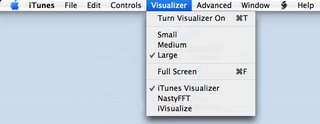
Have fun and see what else is available; I've been really enjoying one called NastyFFT, a great real-time, colour-switching spectrum analyzer...
Keep in mind that using the path provided above installs the new visualizations for the active user only, and not every user on the system. In order to have visualizations available to every user, move (or copy) the visualizations to the following folder:
Hard drive / Library / iTunes / iTunes Plug-Ins
In our next installment, we will explore some options available using playlists and smart playlists!
This process is really broken down into two steps:
1. Locate and download a new visualization for iTunes
2. Move (or copy) the new visualization to the iTunes folder
There are several places to begin searching for new visualizations; an easy first choice is Google, followed by Apple's Downloads section. When one or more visualizations have been downloaded, it is time to move (or copy) them to the iTunes folder, in a specific place. The path to use is:
All new visualizations need to be placed within this folder. If iTunes was running, quit and relaunch the application, and the new visualizations should be available to select from the Visualizer menu, as can be seen in the image below:
Have fun and see what else is available; I've been really enjoying one called NastyFFT, a great real-time, colour-switching spectrum analyzer...
Keep in mind that using the path provided above installs the new visualizations for the active user only, and not every user on the system. In order to have visualizations available to every user, move (or copy) the visualizations to the following folder:
In our next installment, we will explore some options available using playlists and smart playlists!
Wednesday, August 30, 2006
Unlocking the power of iTunes 1: Visualization control
 For those who have been using iTunes since it has come out, the following information might be old news, but for several new Apple users, this might be entirely new. iTunes is a fairly straightforward application to use, and most users, although proficient, are only aware of about 75% of what iTunes is capable of doing. This article will deal with the control of visualizations in iTunes. As you may already be aware, Apple has included a fairly complex, if somewhat psychadelic, set of visualizations for iTunes. These visualizations are built on a three concept: one layer, labelled the Visualization Form, a second layer, labelled the Visualization Effect and a third layer, labelled Visualization Colour. It is the combination of these three independant layers that creates the seemingly endless possibilities of Apple's visualizations.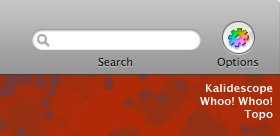
But now that we are aware of these layers, a question that comes to mind is how many are there and are they listed? Well, yes, and someone has gone through the trouble of listing the contents of these layers at Winston's iTunes Cheet Sheet. Apple has thoughtfully provided several keyboard controls for iTunes that are simply not published for consumers. Some of these keyboard controls are specifically for the advanced control of visualizations.
The three following controls, which allow the user to toggle each layer independantly, is used to create a specific combination of layers to reach a desired visual effect. These controls are:
- Q / W - toggle visualization "form"
- A / S - toggle visualization "effect"
- Z / X - toggle visualization "color"
Once a desired combination is reached, it can be frozen, or saved and assigned to a designated numerical key by using other commands. This can be an interesting addition for anyone using iTunes in a DJ setting, as it provides the ability to project a programmed visualization on cue. Here are these additional commands:
- D - Reset Visualization to default
- N - toggle Normal or high-contrast colors
- M - Manually select config mode (user, freeze, random)
- R- Randomly select config mode
- C - display Current visualization config
- NUM keys - user config presets (use SHIFT and # to record a preset)
Have fun experimenting with these settings. They can provide a new and interesting feature to a great media player like iTunes.
In the next installment, we will look at adding new visualizations to iTunes and where these can be procured...
Monday, August 28, 2006
Using scripts with iTunes...
It has come to my attention that several friends of mine have been using iTunes as their primary media player for a little while now, and although many of them are PC users, there are a few that are Apple users. And it is for these people that I write today; I would like to teach you to add functionalities to iTunes using some pre-built scripts. These scripts are Applescripts, and they can provide you with the ability to make iTunes work exactly the way you want.
This is a three step process, so here goes:
1. The first step is to locate the folder user/Library/iTunes and insert a new folder labelled Scripts.
2. Locate some existing scripts; a great site for this is Doug's Applescripts for iTunes site. So far, they have over 400 scripts available for free download.
3. Once you've downloaded a few scripts, unzip them and copy the scripts to the Scripts folder created earlier.
A new icon becomes available in the iTunes menu; this icon allows a user easy access to the new functions provided by the scripts.
Have fun...
This is a three step process, so here goes:
1. The first step is to locate the folder user/Library/iTunes and insert a new folder labelled Scripts.
2. Locate some existing scripts; a great site for this is Doug's Applescripts for iTunes site. So far, they have over 400 scripts available for free download.
3. Once you've downloaded a few scripts, unzip them and copy the scripts to the Scripts folder created earlier.
A new icon becomes available in the iTunes menu; this icon allows a user easy access to the new functions provided by the scripts.
Have fun...
Tuesday, May 23, 2006
Windows XP install on Mac Intel
As we may have all been reading lately, a winner has been declared in the running contest to get this done. The winner of the contest, known only as "narf," will pick up a cash prize of $13,854, accumulated through donations from contest supporters and other third-party sponsors. As reported in Ars Technica, here are some more details about this feat.
Here is what you'll need:
A Windows XP Pro (SP2) CD. Apparently, it does not have to be a bootable CD, but it does require the i386 directory at root level.
The xom.zip file.
Nero Burning ROM
A blank CD
A PC of course...
20-30 minutes
The instructions lay out the entire process in an abbreviated manner for those users who are more adept at performing "advanced" tasks like repartitioning drives and such, and in a more basic, step-by-step manner for users who might be slightly intimidated by the exercise. When you get down to it, you're creating a custom XP bootdisk, with some of the Microsoft files replaced with patched files created by narf. The files modified/added in the i386 folder are:
iaStor.sys
NTDETECT.COM
TXTSETUP.SIF
WINNT.SIF
XOM.INF
In addition there are several files being replaced and/or added in the $OEM$ directory:
$$/system32/drivers/xomdd.sys
$1/drivers/iastor/iaahci.cat
$1/drivers/iastor/iaahci.inf
$1/drivers/iastor/iaStor.cat
$1/drivers/iastor/iaStor.sys
$1/drivers/iastor/TXTSETUP.OEM
The final 5 items are replicated in the $OEM$/TEXTMODE directory. Once the custom Windows XP bootdisk has been developed, a repartition is required on the iMac's disk to contain both HFS+ and NTFS partitions, which for most people, means you're probably going to have to blow away your current install. Mac OS X will be installed to an HFS+ partition and you'll be installing an xom.efi bootloader which will then allow you to install Windows XP from your new disc.
At this point you're more or less dealing with a situation no different than your run-of-the-mill budget PC.
Here is what you'll need:
A Windows XP Pro (SP2) CD. Apparently, it does not have to be a bootable CD, but it does require the i386 directory at root level.
The xom.zip file.
Nero Burning ROM
A blank CD
A PC of course...
20-30 minutes
The instructions lay out the entire process in an abbreviated manner for those users who are more adept at performing "advanced" tasks like repartitioning drives and such, and in a more basic, step-by-step manner for users who might be slightly intimidated by the exercise. When you get down to it, you're creating a custom XP bootdisk, with some of the Microsoft files replaced with patched files created by narf. The files modified/added in the i386 folder are:
iaStor.sys
NTDETECT.COM
TXTSETUP.SIF
WINNT.SIF
XOM.INF
In addition there are several files being replaced and/or added in the $OEM$ directory:
$$/system32/drivers/xomdd.sys
$1/drivers/iastor/iaahci.cat
$1/drivers/iastor/iaahci.inf
$1/drivers/iastor/iaStor.cat
$1/drivers/iastor/iaStor.sys
$1/drivers/iastor/TXTSETUP.OEM
The final 5 items are replicated in the $OEM$/TEXTMODE directory. Once the custom Windows XP bootdisk has been developed, a repartition is required on the iMac's disk to contain both HFS+ and NTFS partitions, which for most people, means you're probably going to have to blow away your current install. Mac OS X will be installed to an HFS+ partition and you'll be installing an xom.efi bootloader which will then allow you to install Windows XP from your new disc.
At this point you're more or less dealing with a situation no different than your run-of-the-mill budget PC.
Subscribe to:
Posts (Atom)